Showing posts with label Virtual Center Server. Show all posts

Sunday, February 7, 2010

Changing Virtual Center Server Permissions

By default, when you create a Virtual Center Server installation or vCenter Server the administrators group of the PC you install on becomes the Administrators of the application. At my work the result of that is that the AD Domain administrator group is the administrors group.

But that doesn't have to be the case

The following is an extract from a VMware resource on Virtual Center Server permissions.

• VirtualCenter runs as a user that requires local administrator
privilege and must be installed by a local administrative user. However, to limit the scope of administrative access, avoid using the Windows Administrator user to operate VirtualCenter after you install it. Instead, use a dedicated VirtualCenter administrator account. To do so, take the following
steps:
1. Create an ordinary user account that will be used to manage VirtualCenter, for example, the VI Admin user. Make sure that this user does not belong to any local groups, such as Users or Administrators. This precaution ensures that any future role assignments involving a local group does not inadvertently affect this account.
2. In VirtualCenter, log on as the Windows Administrator, then grant the role of Administrator (that is, the global VirtualCenter administrator) to the newly created account on the top-level Hosts and Clusters folder.
3. Log out of VirtualCenter, then make sure you can log in to VirtualCenter as the new user and that this user is able to perform all tasks available to a VirtualCenter administrator.
4. Remove the permissions in VirtualCenter for the local Administrators group.
By configuring accounts in this way, you avoid automatically giving administrative access to domain administrators, who typically belong to the local Administrators group. You also provide a way of getting into VirtualCenter when the domain controller is down, because the local VirtualCenter administrator account does not require remote authentication.


There certainly can be a benefit to adding in some local users to the administrator's group on the Virtual Center Server. Which is what we had originally done. If something happens to the AD, you will still be able to access the VMware environment. Although hopefully, some thought will be being given to recovering AD. That account was then automatically inherited as an Administrator. However, it is just as easy to create another group within the domain and then provide that account with the permission of Administrator from the top level down - ensuring that that permission propagates down to child nodes.

This post needs some screen shots, but otherwise that's that.

Wednesday, July 8, 2009

Migrating Virtual Center Server DB from MSDE to SQL Server

SQL Server Express has a DB size limit of 4GB. I discovered that on a Monday morning! Our DB had reached that size. The shrink function didn't! Checking the tables the two event tables were the big problem.

There is an interesting query on the VMware support site which suggests that VMware do not support this migration, but prefer rebuilding the db from scratch, i.e. re-installing. However, talking to VMware support on the following day, Tuesday, they were only too happy to follow a procedure to migrate the DB from Express to full SQL Server. In fact I would say they preferred to do that compared to simply telling me how to purge the event tables. Although that would have been the option had full SQL Server not been an option and the tech support were prepared to go that way.

I googled an article on a site I'd never heard of previously. Talking with VMware support it was pretty good, but missed a number of steps out. I'll try and fill those blanks in in blue below.


1. Shutdown the Virtual Center server, so it discontects from the MSDE database.
I didn't have a choice. The database was so full, VCS wouldn't run.

2. At a command prompt, enter:
c:\sqlcmd -S \SQLEXP_VIM
1> Use master
2> Exec sp_detach_db VIM_VCDB
3> go

Alternatively, load the SQL Server management Studio Express, and detach the DB using the menu option.

3. Copy the database files (vim_vcdb.mdf, vim_vcdb.ldf, vim_umdb.mdf, vim_umdb.ldf_ to the appropriate data directory on the targetSQL Server.
4. Open Microsoft SQL Server management Studio on the target server.

5. Check that the SQL Server properties are to allow both Windows & SQL Server authentication.

6. Select Security->Logins to create a SQL user account, e.g. vclogin
7. Right click Databases and then Attach Database
8. Assign vclogin account database owner roles for vim_vcdb.mdf, vim_umdb.mdf and msdb databases. Leave the default database as master for vclogin SQL account.
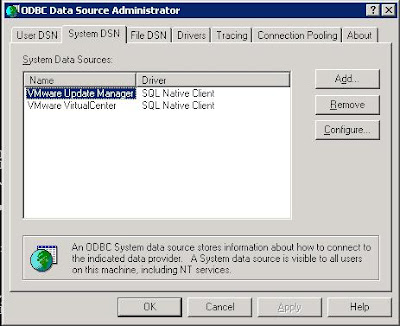
9. On the VC Server, change the existing "VMware VirtualCenter" ODBC connection from the local MSDE "\SQLEXP_VIM" to SQL001
10. Choose the SQL server account authentication method, and input the vclogin username/password combination.
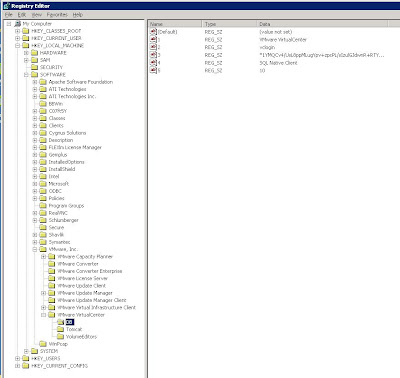
10. The procedure states to run Add/Remove Programs and repair the installation, but VMware support provided an alternative procedure, essentially using regedit to change the details in the registry.
11. Program->Run->Regedit
12. Fields 2 & 3 will be empty to begin with.
13. Add the username created in field 2.
14. To enter the password into field 3, enter
vpxd -p

15. Log back in VirtualCenter and verify the configuration.

16. Ensure that SQL Agent service is running on the server.

17. Register performance monitoring scripts on new server as vclogin via the SQL Server Management Studio, You'll find the scripts in the Virtual Center Server directory.

job_schedule[123]_mssql.sql

Point to the msdb database, copy and paste each of the scripts in turn into the edit pane and select the Execute! button. Check that they were created.


And that should be that!

However a very, very important issue to consider. Make sure that the account you use to follow this procedure is the account you first installed VCS with. Preferably an account local to the server running VCS. Depending upon other policies in your AD, you will run into some inconvenient side-effects should you ever change the password of the account you use.

And that is that!

Sunday, June 7, 2009

Extending the Disk of a VM

Apparently the only safe way/time to extend the size of a virtual machine's disk(s) is when you do not have a snapshot of the disk.

Through the VIC, you are prevented from increasing the size of a vmdk file. When the VM is running all options are greyed out. Via the command line on the server, you can still enter the vmkfstools -X command.

However, according to VMware support, as soon as you enter that command on a disk that has a snapshot you've completely hosed your VM!

Better have a good backup! Preferably a recent one.

I'm glad to say I didn't discover this first hand. Some colleagues of mine did. I just had to clear up their mess. So it goes!

Well, that's that.

Tuesday, March 17, 2009

Fracking KVM

I started 3 ESX v3.5 ESX servers and followed two of them through the boot boot sequence via a KVM.

They both hung at
starting console mouse services...
The Virtual Center server showed them as uncontactable.

Aaarrgghh!!

Luckily that is after the ssh service is started so I was able to ssh in and
service gpm stop
cd /etc/rc3.d
and for each service after S85gpm I started the service by hand. At which point they were visible in Virtual center Server. Hurrah!

Post Mortem:
  • Why only two of the three?
  • Was it the version of ESX?
  • What was the commonality?

Well, it wasn't the version of ESX. The two ESX servers which hung were running different builds of v3.5!

The common feature was that I had monitored the boot of the servers via the KVM. The server that hadn't been monitored had booted without issue. So I ensured the KVM was connected to a Windows system and from Virtual Center Server, I issued reboots to the two ESX servers which had hung and went outside for ten minutes to bite my fingernails. I needed a clean reboot anyway.

When I came back, the servers had rebooted successfully.

So the problem had been the KVM system we have.

Perhaps I should not have been surprised. Lets just say it is rumoured at work that when Noah installed a KVM on the Ark, he dismissed the system we've got as too antiquated!

So it goes!

Thursday, May 29, 2008

VMware ESX re-signaturing of the SAN Config

After a slightly strange power outage in the server room at work - the UPS stayed up everything else in the server room went down!! - I came across the situation that an ESX server had lost the primary connection to its SAN through the multipath fibre channel switch fabric.

Cue: extreme nervousness. To put it mildly.

There were a number of messages on the ESX Server console of the form:
cpu2:1034)LVM: ProbeDeviceInt:4903: vmhab1:1:0:1 may be snapshot: disabling access. See resignaturing section in SAN config guide

Actually, the last part of the error message is very good advice. A good read of the SAN configuration guide is well worth the time and effort.

Somewhere along the line the ESX host has lost this VMFS3 volume and picked it up on a different path, vmhba1:1:0:1. When the host came back up, it picked up the VMFS3 on the different path, but importantly kept information about this partition at it's previous path. This is why it's decided it's looking at a Snapshot, and responded in this manner.

So go into the console, click on the Configuration tab and select "Advanced Settings"

Expand the LVM section and set LVM.EnableResignature to 1
Then click OK to apply settings.

Select the "storage adapters" link under the configuration tab and click the "rescan" button (upper right).
Right click the vmhba (under the controller adapter for your machine) and click "rescan".

Then when you go to the summary tab, you right click and slect "refresh" and you should see your storage volume.

At least, that is what the manual would have you believe. My experience was rather different.

ESX was perfectly happy to see the volume on its new path as a new volume. Consequently, I had to remove all my inaccessible VMs and re-register them from the "new" volume. I may have had other options. This seemed to be the quickest at the time.

After all that, all the VMs started up without error, and other than a delay restarting the VMs, the users were unaware of the problem.