Showing posts with label VMware. Show all posts

Tuesday, February 16, 2010

Some good links

I came across a blog just today by following a link on Scott Lowe's bookmarks: Linux Performance Tuning

This is really useful information. All pulled together in one place. Some of it might seem common sense, but as has frequently been said it is surprising how uncommon common sense can be.


As I wrote in my previous post about recovering from a disaster, documentation on your environment is vital. And these two links below provide that.


I've only just noticed that RVTools has been considerably updated. This is an excellent tool and the more so for being free. I feel a bit guilty about  not being in a position to donate some of my employers' money via paypal.

Actually, the new feature that I'm most excited by is one that has been there for several versions now. Specifically, the ability to export all the information in csv format. And to do that from the command line!


I was browsing sunfreeware and came across sys_diag, a script generated by Todd Jobson. For doumenting the state of a Solaris server, it looks damn comprehensive. I intend to use it on the Solaris systems at my work and save the results into our database of server information.

Sunday, February 7, 2010

Changing Virtual Center Server Permissions

By default, when you create a Virtual Center Server installation or vCenter Server the administrators group of the PC you install on becomes the Administrators of the application. At my work the result of that is that the AD Domain administrator group is the administrors group.

But that doesn't have to be the case

The following is an extract from a VMware resource on Virtual Center Server permissions.

• VirtualCenter runs as a user that requires local administrator
privilege and must be installed by a local administrative user. However, to limit the scope of administrative access, avoid using the Windows Administrator user to operate VirtualCenter after you install it. Instead, use a dedicated VirtualCenter administrator account. To do so, take the following
steps:
1. Create an ordinary user account that will be used to manage VirtualCenter, for example, the VI Admin user. Make sure that this user does not belong to any local groups, such as Users or Administrators. This precaution ensures that any future role assignments involving a local group does not inadvertently affect this account.
2. In VirtualCenter, log on as the Windows Administrator, then grant the role of Administrator (that is, the global VirtualCenter administrator) to the newly created account on the top-level Hosts and Clusters folder.
3. Log out of VirtualCenter, then make sure you can log in to VirtualCenter as the new user and that this user is able to perform all tasks available to a VirtualCenter administrator.
4. Remove the permissions in VirtualCenter for the local Administrators group.
By configuring accounts in this way, you avoid automatically giving administrative access to domain administrators, who typically belong to the local Administrators group. You also provide a way of getting into VirtualCenter when the domain controller is down, because the local VirtualCenter administrator account does not require remote authentication.


There certainly can be a benefit to adding in some local users to the administrator's group on the Virtual Center Server. Which is what we had originally done. If something happens to the AD, you will still be able to access the VMware environment. Although hopefully, some thought will be being given to recovering AD. That account was then automatically inherited as an Administrator. However, it is just as easy to create another group within the domain and then provide that account with the permission of Administrator from the top level down - ensuring that that permission propagates down to child nodes.

This post needs some screen shots, but otherwise that's that.

Sunday, January 10, 2010

vReference Card

The excellent VMReferemce Card site has been updated for v4 and now has the URL: www.vreference.com.

As well as an updated VMware reference card there is also a reference card showing all the ports used by various VMware services, which has been called the firewall card.

I am especially pleased to see the firewall diagram. The firewalls are controlled by a separate team at my company and they are not always the most flexible of guys. Haha. Every change to the firewall has to be raised on a form, signed off by Directors and/or VPs, and faxed through to the corporate HQ, where it is saved in a DB. All that before they do anything. Occasionally they'll actually help out testing what is actually needed, but generally they are a PITA.

Most of the ports are indeed documented within Manuals. However, certainly with the Vi3 documentation, I was disappointed by the quality of that documentation. Ports would be listed at required with the inference it was only one way and solely one of TCP or UDP. Unfortunately, some experimentation demonstrated that that might not actually be the case. A port needed to be open in both directions, TCP in one direction and UDP in the reverse!

Anyway having all that information so clearly documented here will be a great help going forward.

That's that!

Wednesday, July 8, 2009

RVTools #8 version 2.5.5

There's a new version of RVTools, v2.5.5. Mostly bugfixes and small incremental changes.

That said it is good to see continuing progress.

Migrating Virtual Center Server DB from MSDE to SQL Server

SQL Server Express has a DB size limit of 4GB. I discovered that on a Monday morning! Our DB had reached that size. The shrink function didn't! Checking the tables the two event tables were the big problem.

There is an interesting query on the VMware support site which suggests that VMware do not support this migration, but prefer rebuilding the db from scratch, i.e. re-installing. However, talking to VMware support on the following day, Tuesday, they were only too happy to follow a procedure to migrate the DB from Express to full SQL Server. In fact I would say they preferred to do that compared to simply telling me how to purge the event tables. Although that would have been the option had full SQL Server not been an option and the tech support were prepared to go that way.

I googled an article on a site I'd never heard of previously. Talking with VMware support it was pretty good, but missed a number of steps out. I'll try and fill those blanks in in blue below.


1. Shutdown the Virtual Center server, so it discontects from the MSDE database.
I didn't have a choice. The database was so full, VCS wouldn't run.

2. At a command prompt, enter:
c:\sqlcmd -S \SQLEXP_VIM
1> Use master
2> Exec sp_detach_db VIM_VCDB
3> go

Alternatively, load the SQL Server management Studio Express, and detach the DB using the menu option.

3. Copy the database files (vim_vcdb.mdf, vim_vcdb.ldf, vim_umdb.mdf, vim_umdb.ldf_ to the appropriate data directory on the targetSQL Server.
4. Open Microsoft SQL Server management Studio on the target server.

5. Check that the SQL Server properties are to allow both Windows & SQL Server authentication.

6. Select Security->Logins to create a SQL user account, e.g. vclogin
7. Right click Databases and then Attach Database
8. Assign vclogin account database owner roles for vim_vcdb.mdf, vim_umdb.mdf and msdb databases. Leave the default database as master for vclogin SQL account.
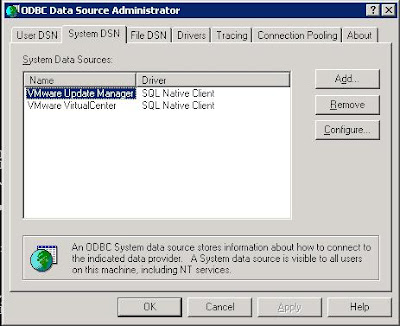
9. On the VC Server, change the existing "VMware VirtualCenter" ODBC connection from the local MSDE "\SQLEXP_VIM" to SQL001
10. Choose the SQL server account authentication method, and input the vclogin username/password combination.
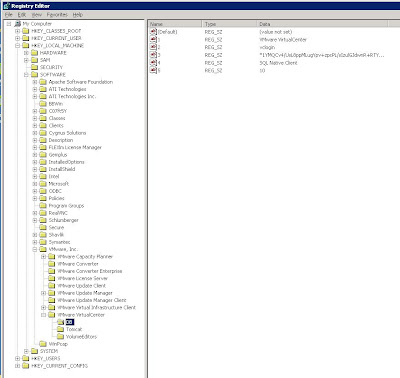
10. The procedure states to run Add/Remove Programs and repair the installation, but VMware support provided an alternative procedure, essentially using regedit to change the details in the registry.
11. Program->Run->Regedit
12. Fields 2 & 3 will be empty to begin with.
13. Add the username created in field 2.
14. To enter the password into field 3, enter
vpxd -p

15. Log back in VirtualCenter and verify the configuration.

16. Ensure that SQL Agent service is running on the server.

17. Register performance monitoring scripts on new server as vclogin via the SQL Server Management Studio, You'll find the scripts in the Virtual Center Server directory.

job_schedule[123]_mssql.sql

Point to the msdb database, copy and paste each of the scripts in turn into the edit pane and select the Execute! button. Check that they were created.


And that should be that!

However a very, very important issue to consider. Make sure that the account you use to follow this procedure is the account you first installed VCS with. Preferably an account local to the server running VCS. Depending upon other policies in your AD, you will run into some inconvenient side-effects should you ever change the password of the account you use.

And that is that!

Sunday, June 7, 2009

PowerCLI Resources

VMware have just released a PowerCLI session from VMworld.

I was also alerted by the excellent VMreference site to the existence of a PowerCLI reference card which is equivalent of the VM reference Card.

VI Internals has a pretty decent introduction to PowerCLI.

Extending the Disk of a VM

Apparently the only safe way/time to extend the size of a virtual machine's disk(s) is when you do not have a snapshot of the disk.

Through the VIC, you are prevented from increasing the size of a vmdk file. When the VM is running all options are greyed out. Via the command line on the server, you can still enter the vmkfstools -X command.

However, according to VMware support, as soon as you enter that command on a disk that has a snapshot you've completely hosed your VM!

Better have a good backup! Preferably a recent one.

I'm glad to say I didn't discover this first hand. Some colleagues of mine did. I just had to clear up their mess. So it goes!

Well, that's that.

Monday, April 13, 2009

RVTools #7 version 2.5

I just surfed by the robware.net and saw there was a new version of RVTools.

There has been quite a lot of changes. In a juvenile way the change I'm most glad to see is that it will no longer be necessary to uninstall before upgrading! Huzzah!

There is a lot of new functionality, which I'm looking forward to exploring when I get back to work. The vHealth tab looks like it could be useful. And there've been a number of small amendments to some of the other tabs too.

RVTools was already very impressive, but it is now even more so.

Sunday, March 29, 2009

VMware & Changes on the PCI bus

All the ESX servers at work are IBMs. In fact most all the x86 servers in the datacentre are IBMs. Heck, even quite a lot of our training is sourced through IBM.

I thought I had blogged about vmnics changing ID/name earlier on in the same manner as on this blog from SysAdminHell, but must have been mistaken. One of my first (bad) experiences with ESX was having to go in and undertake the same procedures as in that blog.

That blog entry only suggests that moving the physical NIC card causes the problem. My experience is that any change on the PCI bus can cause the vmnics to be renamed.

Perhaps that is only a problem with IBMs. Or perhaps not!

RVTools #6 version 2.4.1

Yet another new version! WooHoo!


This one is just a bugfix for the filtering features, where the absense of a cluster could cause a crash  if the right (?! wrong ?!) circumstances.

Friday, March 27, 2009

VM Reference Card

I've known about the excellent VMReferemce Card for a while now.

I've just printed the latest version out. It is amazing that all that information can be fitted onto two sides of A4.

Invaluable!

Tuesday, March 17, 2009

Fracking KVM

I started 3 ESX v3.5 ESX servers and followed two of them through the boot boot sequence via a KVM.

They both hung at
starting console mouse services...
The Virtual Center server showed them as uncontactable.

Aaarrgghh!!

Luckily that is after the ssh service is started so I was able to ssh in and
service gpm stop
cd /etc/rc3.d
and for each service after S85gpm I started the service by hand. At which point they were visible in Virtual center Server. Hurrah!

Post Mortem:
  • Why only two of the three?
  • Was it the version of ESX?
  • What was the commonality?

Well, it wasn't the version of ESX. The two ESX servers which hung were running different builds of v3.5!

The common feature was that I had monitored the boot of the servers via the KVM. The server that hadn't been monitored had booted without issue. So I ensured the KVM was connected to a Windows system and from Virtual Center Server, I issued reboots to the two ESX servers which had hung and went outside for ten minutes to bite my fingernails. I needed a clean reboot anyway.

When I came back, the servers had rebooted successfully.

So the problem had been the KVM system we have.

Perhaps I should not have been surprised. Lets just say it is rumoured at work that when Noah installed a KVM on the Ark, he dismissed the system we've got as too antiquated!

So it goes!

Enable ssh on ESXi

I was about to write a quick blog entry on how to enable ssh access to an ESXi server, but I did a quick google around and there are already a number of blog entries out there, including on:
and many others. It is such a frequently asked question that VMware should enable ssh by default.

What is interesting, to me anyway, is that this search brought two new (to me) vm help sites. Although at work, we always use hw on the HCL I realise some people do not have that luxury.

And that's that!

RVTools #5 version 2.4

A new version! WooHoo!

I upgraded immediately, of course.

Actually I tried an install first, but there was the same trek to the "Add or Remove Programs" Control Panel applet to remove the currently installed version before installing the new version.

It looks identical to the previous version. The only differences are that at the bottom of a number of tabs is a button to perform specific actions relevant to that tab, i.e. on the vCD tab unmounting the CD/DVD, and on those tabs each line has a selection box so that the action can be applied to one or more of your VMs.

I'm guessing Rob is going to go further along the line of adding actions to the interface. In general I like the idea and I am interested to see how he'll change the UI to accommodate those changes. At the moment the tabular interface is fine, but with more functionality it will be difficult to make it all easily accessible!

Bottom line: still on the immediate download & install list!

Monday, February 23, 2009

How to change blocksize (file size limit) on VMFS3 filesystem

Under VMware ESX 3.5.x the VMFS3 filesystem has limitations on file size which will result in errors if you try to create a guest virtual machine with a large disk drive, e.g. if you created your VMFS3 filesystem with a 1MB block size and you try to create a guest VM with disk drive size larger than 256 you will get this error :
File is larger than the maximum size supported by datastore.

This happens because by default VMware ESX running VMFS3 uses 1M blocksize with a limitation of 256 GB disk size for the guest virtual machine. However it is possible to change or rather increase the size of disk drive that you can create for the virtual machine. If you can change block size to 2M on VMFS3 filesystem on your ESX server you can create disk drive upto 512GB size for the virtual machine.

The following list indicates the relationship between block sizes and maximum disk drive size for virtual machines :
1M Block Size max VMFS-3 = 256G
2M Block Size max VMFS-3 = 512G
4M Block Size max VMFS-3 = 1024G
8M Block Size max VMFS-3 = 2048G

File sizes larger than 2048 GB are not supported on VMFS3 filesystem. VMFS2 allowed upto 16 M block size but that option is not available on VMFS3 filesystems.

It is possible to change the block size of a VMFS3 filesystem. Use vmkfstools command from the command line to reformat the partition. The vmkfstools command can be run on ESX server:

#vmkfstools –create vmfs3 –blocksize 2M vmhba1:0:0:2

Obviously the previous contents are over-written. This thread on VMware's community pages describes the issue quite well.

So should you opt for a larger block size than 1MB?

Obviously the answer will depend upon your circumstances, but generally I would suggest not. I've only had the issue once. For a single VM. Arguably, that VM could have been re-architected to get around this problem. Probably, should have been! And if I hadn't had the flexibility at the time to make the change to the filesystem, it would have had to have been.

Well that's that.

Monday, February 16, 2009

Useful VMware KB articles

Researching the background to a problem we've just suffered for the second time in three weeks on one of our ESX servers I came across a couple of extremely useful general articles in the VMware KnowledgeBase.

The first was called Investigating hosted virtual machine resources and the second was called Verifying the health of an operating system

A lot of common sense, but how often has it been said, that common sense is in extremely short supply!

RVTools #4 - version 2.3.1

I have downloaded the latest version of RVTools - v2.3.1. Its just a minor bugfix version.

I have only two minor criticisms.

The requirement to uninstall the previous version before installing the new version is annoying, but at least there is no requirement to reboot. Uninstall uses up a couple of minutes. It would be so nice if a graceful upgrade could be managed.

We have quite a few VMs. If you have scrolled to the bottom of the vInfo Tab to view the information for a VM and then want to check the information for that VM displayed on the vCPU Tab. Well, on selection of the vCPU Tab, the list automatically reverts to the top of the list.

I can think of instances when that is the behaviour you would like. I just suspect that more usually you will want to keep your relative position.

Of course, there are some Tabs when it is not possible or meaningful to maintain a relative position. If one of those were selected, then it is reasonable that the top of the list is selected.

Despite my quibbles, RVTools is still an excellent tool.

And that's that!

Tuesday, February 10, 2009

RVTools #3 - version 2.3

I spotted version 2.3 of the excellent RVTools had been released and was available for download.

As a major fanboy, obviously I immediately downloaded it.

There is an extra tab, vHost. I immediately went there and checked out the information displayed there. It was interesting and a bit scary how many different versions of ESX we're using. Especially as we were supposed to be harmonized on a single version. Well! Two versions: full blown ESX and ESXi.
Anyhow.

I checked out the vDatastore Tab.

And it crashed.


Oh!

Oh, pooh!

Now how do I let Rob know?

Wednesday, January 14, 2009

RVTools #2 - version 2.2

I've just downloaded the latest version of RVTools - version 2.2 - which is still excellent!!

The additional vDatastore Tab is really cool.

But it is a simple things that I really like about RVTools. In fact there is one thing that isn't even a new feature, which I've found really useful. We use Vizioncore vRanger for backup and have two VMs with unfortunately similar names - long story. Anyway the only distinguishing feature was the vm id, which RVTools includes on the vInfo tab - the last column: Object ID.

Nothing so dramatic as a life saver, but it quickly resolved our confusion.

Monday, January 12, 2009

Modifying the Keyboard on Debian Linux

So I've downloaded the SyslogAppliance v0.0.4 to act as a Syslog Server in the company's DMZ. I ran the appliance initially in VM Player and then used the Enterprise Converter to import the appliance into a Virtual Machine on our VMwareESX server.

By default, the appliance is set up for a US audience with US keyboards. That's not a problem. After 20+ years in IT, you expect that and I know my way around a US keyboard, especially as I work for an American concern. Anyway, the ReadMe.txt file that's packaged with the appliance provides you with information on how to configure a UK keyboard.
...
VMWare Settings
- 256 MB memory (you should increase this for large log volumes)
- 64GB virtual disk
- listening on port 514/UDP and port 514/tcp
- US keyboard, to install a different local, do
$ apt-get install console-setup
$ dpkg-reconfigure console-setup
...

Obviously, despite both being Linux, it uses a different mechanism from that used by rPath in an earlier post on this blog. But two command lines isn't too painful.

appliance:/etc# apt-get install console-setup
Reading package lists... Done
Building dependency tree
Reading state information... Done
E: Couldn't find package console-setup
appliance:/etc#

Oh. That's unfortunate! Maybe this won't be so easy.

15 minutes of googling around apt-get and reading the more obvious looking results.

appliance:/etc# apt-get update
Get:1 http://security.debian.org lenny/updates Release.gpg [189B]
Ign http://security.debian.org lenny/updates/main Translation-en_US
Get:2 http://ftp.us.debian.org lenny Release.gpg [189B]
Get:3 http://security.debian.org lenny/updates Release [40.8kB]
Ign http://ftp.us.debian.org lenny/main Translation-en_US
Get:4 http://ftp.us.debian.org lenny Release [74.5kB]
Ign http://security.debian.org lenny/updates/main Packages/DiffIndex
Ign http://security.debian.org lenny/updates/main Sources/DiffIndex
Get:5 http://security.debian.org lenny/updates/main Packages [18.1kB]
Get:6 http://security.debian.org lenny/updates/main Source [5175B]
Get:7 http://ftp.us.debian.org lenny/main Packages [6942kB]
Get:8 http://ftp.us.debian.org lenny/main Source [2982kB]
Fetched 10.1MB in 23s (423kB/s)
Reading package lists... Done
appliance:/etc#
appliance:/etc# apt-get install console-setup
Reading package lists... Done
Building dependency tree
Reading state information... Done
The following extra packages will be installed:
console-terminus xkb-data
The following NEW packages will be installed:
console-setup console-terminus xkb-data
0 upgraded, 3newly installed, 0 to remove and 70 not upgraded.
Need to get 1539kB of archives.
After this operation, 5968kB of additional disk space will be used.
Do you want to continue [Y/n]? Y
Get:1 http://ftp.us.debian.org lenny/main console-terminus 4.26-2.1 [420kB]
Get:2 http://ftp.us.debian.org lenny/main xkb-data 1.3-2 [645kB]
Get:3 http://ftp.us.debian.org lenny/main console-setup 1.28 [474kB]
Fetched 1539kB in 5s (264kB/s)
Preconfiguring packages ...
Selecting previously deselected package console-terminus.
(Reading database ... 18500 files and directories currently installed.)
Unpacking console-terminus (from .../console-terminus_4.26-2.1_all.deb) ...
Selecting previously deselected package xkb-data.
Unpacking xkb-data (from .../xkb-data_1.3-2_all.deb) ...
Selecting previously deselected package console_setup.
Unpacking console-setup (from .../console-setup_1.28_all.deb) ...
Setting up console-terminus (4.26-2.1) ...
Setting up xkb-data (1.3-2) ...
Setting up console-setup (1.28) ...
appliance:/etc#

Despite the quantity of output, it didn't take more than 10 to 20 seconds.

Now to configure the software.

appliance:/etc# dpkg-reconfigure console-setup


And that's that!